Mail flow going through Microsoft may be affected. Undeliverable mail is held in the Mail Assure delivery queue and can be read and replied to in the Mail Assure web interface. Users can also compose new email there. Email continuity is included by default for domains protected by Mail Assure.
Good to know: Available actions depend on your user level and on the status of each message.
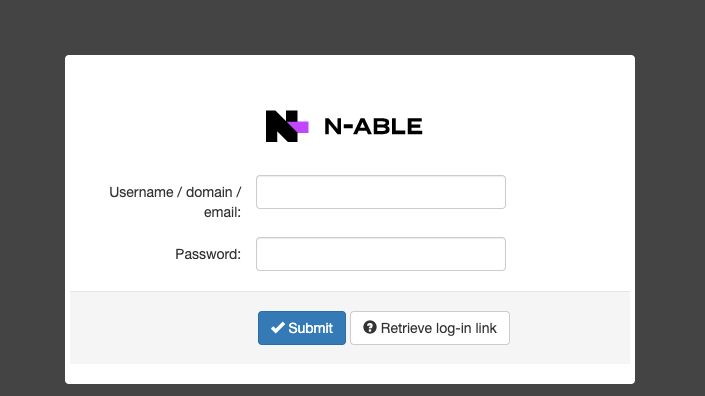
Step 1: Sign in to Mail Assure
- Customers and end users: go to https://client.securemail.management, or your provider’s branded login page. Email users sign in with their email address and password. Have your credentials ready before you need them. If you’re not sure of them, check with your administrator.
- Partners (admins and technicians): go to https://securemail.management and sign in with your N-able Login.
Supported browsers are Google Chrome, Mozilla Firefox, Microsoft Edge and Apple Safari. For full details, see Accessing the Mail Assure dashboard.
Step 2: Open the Continuity menu
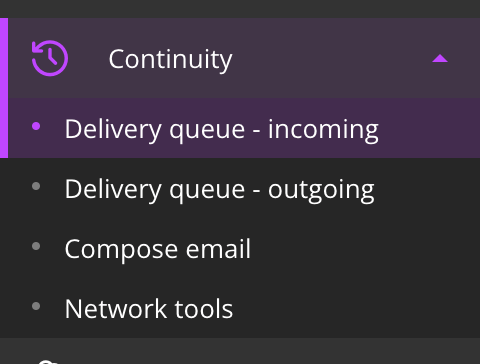
In the left-hand menu, select Continuity. It includes:
- Delivery queue – incoming: incoming messages your mail server is not currently accepting
- Delivery queue – outgoing: outgoing messages the receiving server has temporarily rejected
- Compose email: write and send a new message when your mail server is down or offline
Step 3: Find your queued messages
Select Continuity, then Delivery queue – incoming. Mail Assure shows messages with a Queued or Delivery failed status. Use + New rule and Show Results to find a specific message.
Step 4: Reply to a queued message
While the message is still in the queue, open the actions menu next to it and select Compose Reply. Write your response, add any attachments and select Send.

Step 5: Write a new email
Select Continuity, then Compose email. Enter the recipient, subject and message, add attachments if needed, and select Send Message.
Why it matters
Knowing where to sign in before you need it helps your team stay in touch if their mail server is unavailable. We recommend sharing the sign-in address with your end users and checking now that they can sign in.
More Information:
Accessing the Mail Assure dashboard
View Incoming Delivery Queue
Reply to Email in the Delivery Queue
Compose Email
Support
You must be logged in to post a comment.